With the
import_odbc OpenERP you can import data directly from other databases, such as Oracle or SQL Server, and schedule them to run regularly. Usage examples are to automatically update Customer data from a CRM app or Employee data from a HRIS/Payroll app.
The import is done using the standard
import_data() ORM method, used when importing data through the user interface. So, it benefits from all its features, including relationship reconnecting (
:id or
/id columns).
Each import has a SQL statement used to build the equivalent for an import file. The column titles are given by the SQL's column names.
The first column in the SQL should provide a unique identifier for each record, and will be used to build it's xml_id. This id allows subsequent imports to update previously imported rows, instead of duplicating them. The xml_is is built using the form
[MODEL_ID]_id_[UQ_ID]. For example:
product_product_id_9999. This is important to remember when importing several tables with relationships between them. Columns titled "None" are ignored, so if you don't need to write the unique id to OpenERP, you can name the SQLs first column as "None".
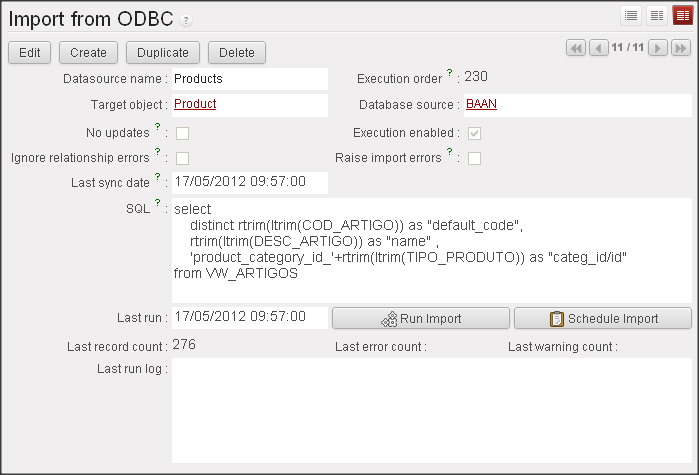
For example, to keep the Products table updated with a product list in another company database, the SQL would look like this:
SELECT ID as "None", PRODUCT_CODE as "ref", PRODUCT_NAME as "name", 'product_category_id_'+CATEGORY_ID as "categ_id/id"
FROM T_PRODUCTS
WHERE DATE_CHANGED >= ?
The "?" is replaced by the last successful sync date. This date is updated after each successfull import run.
This way it's possible to import only the rows changed since last execution, so you can schedule frequent low-volume imports.
Recently a feature was added to be able to tolerate to errors when trying to reconnect relationships. Using the previous example, if the product supplier's xml_id is not found, the product import would fail. But if you activate the "Ignore relationship errors" flag, the import would be retried without the "product_category_id/id" column, importing the product with an empty Category field.
You can find the
import_odbc module in Launchpad's branch:
lp:~dreis-pt/addons-tko/reis.