While the apps.openerp.com site provides access to community modules, there is no way to automatically download a module and all it's dependencies. The problem is even worse if the dependency modules are hosted in different branches.
For this, I created a tool to assist in downloading a module and all it's dependencies, in a way similar to Python's pip or Ubuntu's apt-get.
Here is a quick-start demo:
First, position your command line on your target "addons" directory. For demonstration purposes, let's use a temporary location:
mkdir /tmp/addons
cd /tmp/addons
Now install the "apps" tool and specify the OpenERP version you are working with:
bzr checkout --lightweight lp:~dreis-pt/+junk/apps
apps/init 6.1
Finally, use "apps/get" to download the modules you need. The tool will search in an index for their branch location, download and copy to the current addons directory. Let's try it with two different asterik related modules:
apps/get asterisk_click2dial asterisk360
The apps/get command depends on pre-genererated index files. The program to generate these indexes is also provided, but that's a long running operation, ment to be regularly executed by a server.
I know there are a lot of things to improve, but the current version is perfectly usable. I feel this could be an important tool for the community, so comments would be very welcome.
Tuesday, June 26, 2012


Monday, May 21, 2012
Connect to SQL Server from Ubuntu
Connecting an Ubuntu box to a MS SQL Server can by achieved through the FreeTDS ODBC driver.
Here goes a small recipe to install it:
Now you can open a Python interpreter and test the connection using pyodbc.
This may speed you up if you're trying to import SQL Server data to OpenERP.
Here goes a small recipe to install it:
sudo apt-get update
sudo apt-get install tdsodbc
sudo apt-get install unixodbc unixodbc-dev
sudo apt-get install python-setuptools
sudo easy_install pyodbc
sudo echo -e "[FreeTDS]\nDriver=/usr/lib/odbc/libtdsodbc.so" >> /etc/odbcinst.ini
Now you can open a Python interpreter and test the connection using pyodbc.
This may speed you up if you're trying to import SQL Server data to OpenERP.
Thursday, May 17, 2012
Importing data from ODBC sources
With the import_odbc OpenERP you can import data directly from other databases, such as Oracle or SQL Server, and schedule them to run regularly. Usage examples are to automatically update Customer data from a CRM app or Employee data from a HRIS/Payroll app.

The import is done using the standard import_data() ORM method, used when importing data through the user interface. So, it benefits from all its features, including relationship reconnecting (:id or /id columns).
Each import has a SQL statement used to build the equivalent for an import file. The column titles are given by the SQL's column names.
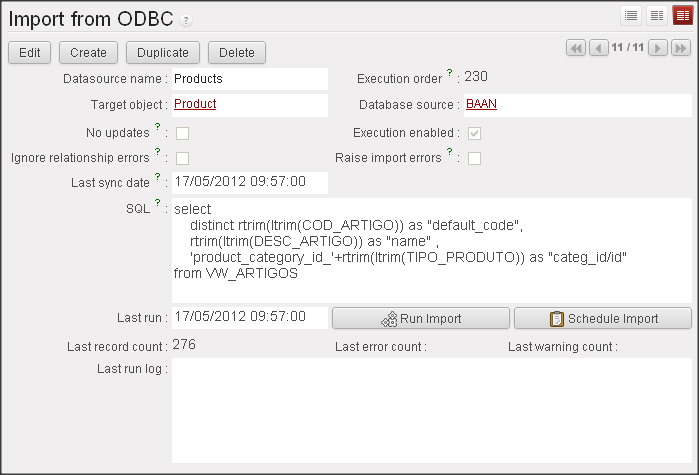
The first column in the SQL should provide a unique identifier for each record, and will be used to build it's xml_id. This id allows subsequent imports to update previously imported rows, instead of duplicating them. The xml_is is built using the form [MODEL_ID]_id_[UQ_ID]. For example: product_product_id_9999. This is important to remember when importing several tables with relationships between them. Columns titled "None" are ignored, so if you don't need to write the unique id to OpenERP, you can name the SQLs first column as "None".
For example, to keep the Products table updated with a product list in another company database, the SQL would look like this:
SELECT ID as "None", PRODUCT_CODE as "ref", PRODUCT_NAME as "name", 'product_category_id_'+CATEGORY_ID as "categ_id/id"
FROM T_PRODUCTS
WHERE DATE_CHANGED >= ?
The "?" is replaced by the last successful sync date. This date is updated after each successfull import run.
This way it's possible to import only the rows changed since last execution, so you can schedule frequent low-volume imports.

Recently a feature was added to be able to tolerate to errors when trying to reconnect relationships. Using the previous example, if the product supplier's xml_id is not found, the product import would fail. But if you activate the "Ignore relationship errors" flag, the import would be retried without the "product_category_id/id" column, importing the product with an empty Category field.
You can find the import_odbc module in Launchpad's branch:
lp:~dreis-pt/addons-tko/reis.
Friday, March 2, 2012
Webkit reports in a X-less server
If you try to run webkit reports in linux system
without an X-server (no system GUI), you will probably get error
message. This can be caused by the wkhtmltopdf library, used by
Webkit report to convert HTML into PDF, because needs to use an
X-server to do the conversion.
To can confirm if this is your problem with this:
# echo test>in.txt; wkhtmltopdf in.txt out.pdf
# echo test>in.txt; wkhtmltopdf in.txt out.pdf
wkhtmltopdf: cannot connect to X server
A workaround to this is to install the static version of the wkhtmltopdf library, (more details info on ). The procedure, using a root account, is this:
A workaround to this is to install the static version of the wkhtmltopdf library, (more details info on ). The procedure, using a root account, is this:
# apt-get update
# apt-get remove wkhtmltopdf
# apt-get install openssl build-essential xorg libssl-dev
# cd /tmp
# wget http://wkhtmltopdf.googlecode.com/files/wkhtmltopdf-0.11.0_rc1-static-i386.tar.bz2
# tar xvjf  wkhtmltopdf-0.11.0_rc1-static-i386.tar.bz2
# chown root:root wkhtmltopdf-i386
# mv wkhtmltopdf-i386 /usr/bin/wkhtmltopdf
# rm wkhtmltopdf-0.11.0_rc1-static-i386.tar.bz2
Now test it again. You should get this output:
#
echo test>in.txt; wkhtmltopdf in.txt out.pdf
Loading
pages (1/6)
Counting
pages (2/6)
Resolving
links (4/6)
Loading
headers and footers (5/6)
Printing
pages (6/6)
Done
Remeber you must provide the path to wkhtmltopdf in the Company form (at Settings/Administration » Companies » Companies » Webkit tab » Webkit Executable Path). Usualy it's /usr/bin/wkhtmltopdf, but you can confirm that with this command:
# which wkhtmltopdf
Thursday, February 2, 2012
Configuring LDAP authentication with Active Directory
First install the python-ldap library:
[sudo] apt-get install python-ldap
Then install OpenERP's user_ldap module.
Go to Administration » Companies, select your company, find the "Configuration" tab, and on the "LDAP Configuration" box click "New" to add a LDAP configuration.
Complete the requested information:
- LDAP Server address: your.adserver.address
- LDAP Server port: 3268
- LDAP binddn: your-domain\a-username
- LDAP password: your-password
- LDAP base: DC=your-domain,DC=local
- LDAP filter: sAMAccountName=%s
- Create User: Yes
- Model User: Your template user

The parameters bindn and password can be ignored if the AD server is configured to allow anonymous connections. In this case, we preferred to create a generic user to connect to the AD.
When someone tries to login to OpenERP for the first time, it's full name is retrieved from the AD and a new Openerp user is created copying from the template user. So, this template user should have assigned default access groups for everyone in the domain.
You might need to adjust some of these setting to your specific AD structure. I found Softerra's free LDAP browser to be useful to explore the AD structure, or just to test the LDAP configuration parameters.
Subscribe to:
Posts (Atom)